
We offer official OVA images which can be used with a variety of hypervisors. For production deployments, we support only vmware ESXi. To begin, please download the latest image. We do automated image builds on the next day from a stable release. Feel free to change file name of the image if you prefer to use the latest release.
This image includes the following components:
- FastNetMon
- MongoDB
- BGP daemon
- Grafana
- Clickhouse
Minimum system requirements for VM image:
- 16 GB Ram or more
- 8 CPU cores or more
- 150GB of disk space or more
If you do not use vCenter, you can deploy FastNetMon directly using ESXI web UI: ESXi guide
To import OVA image to vmware vCenter please execute the following steps in vCenter Web UI.
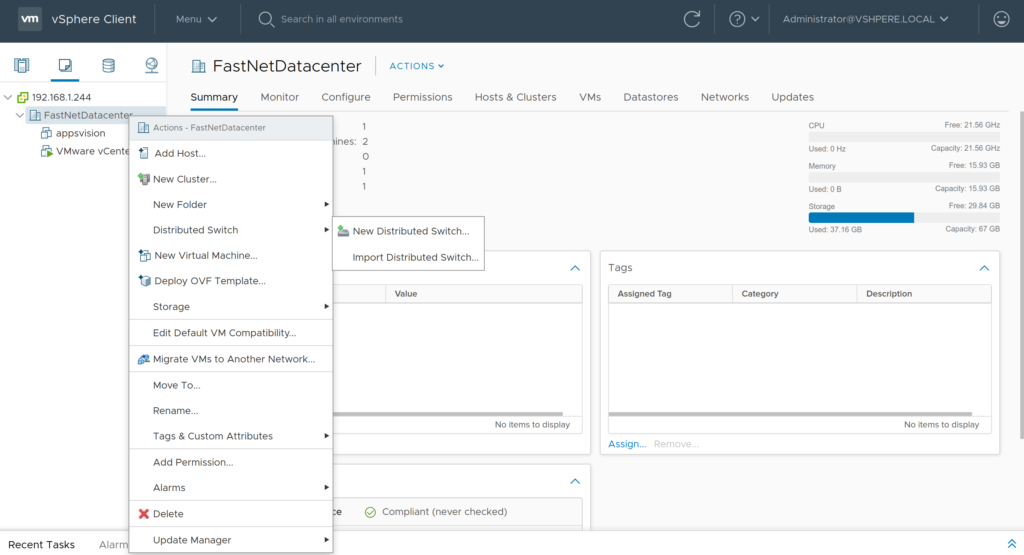
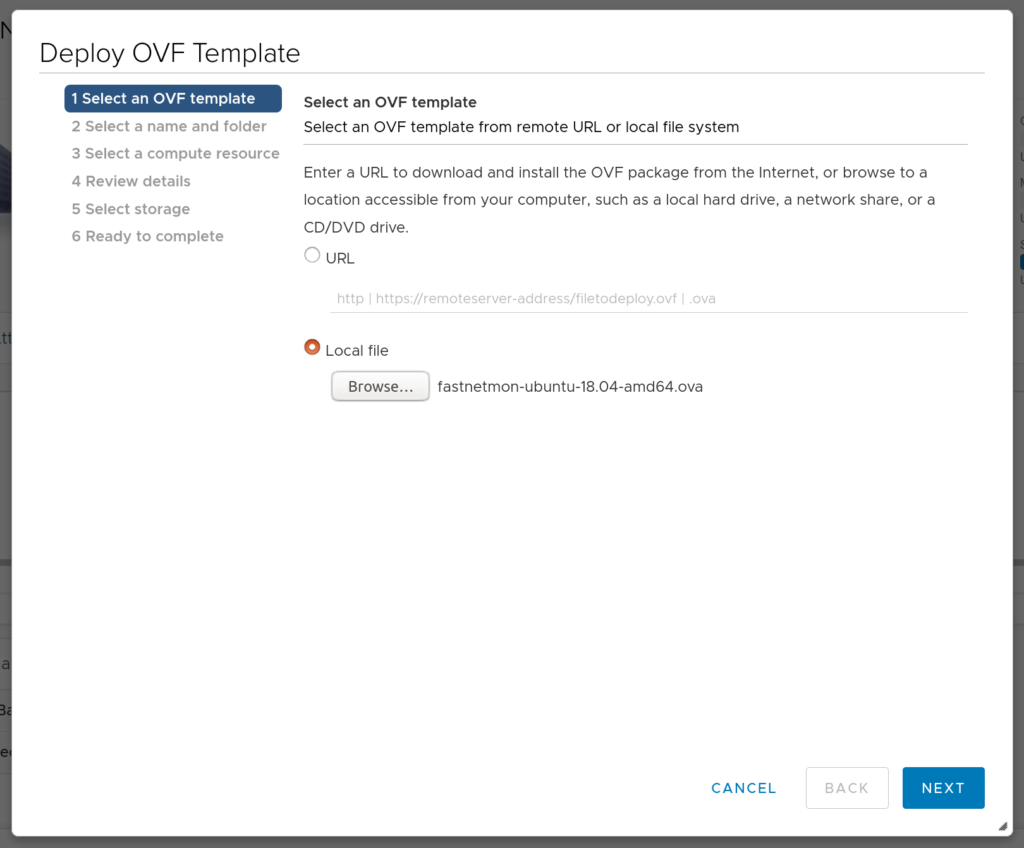
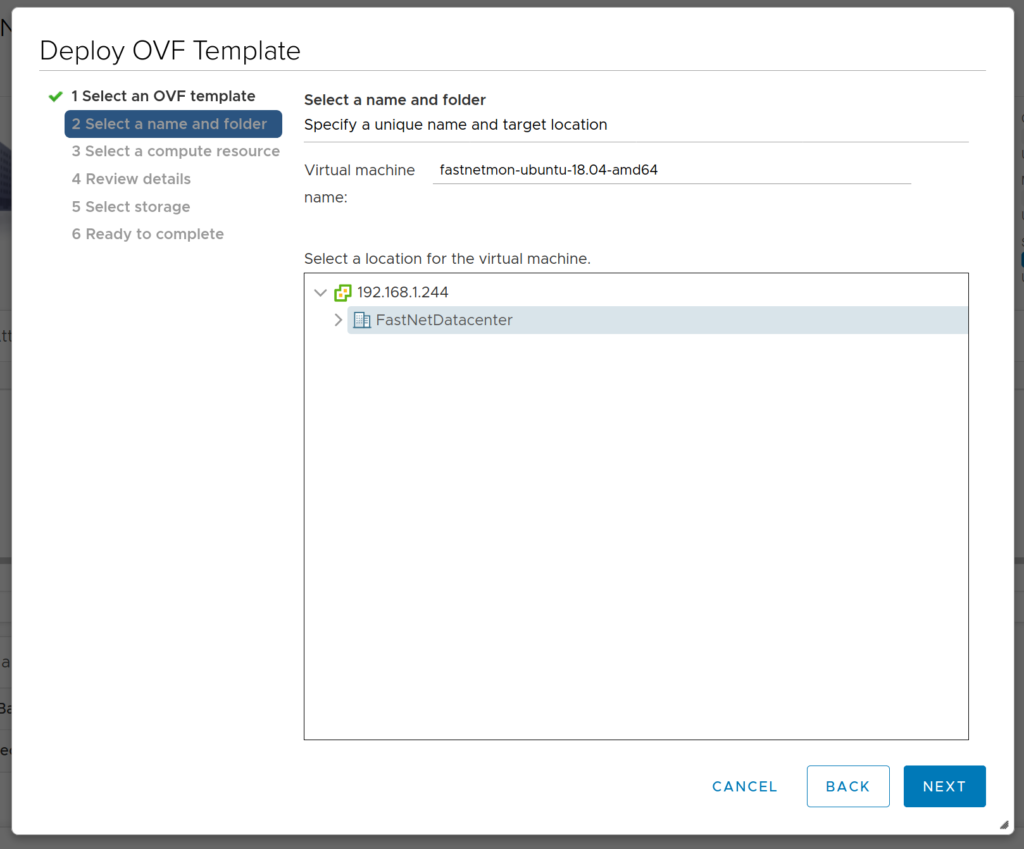
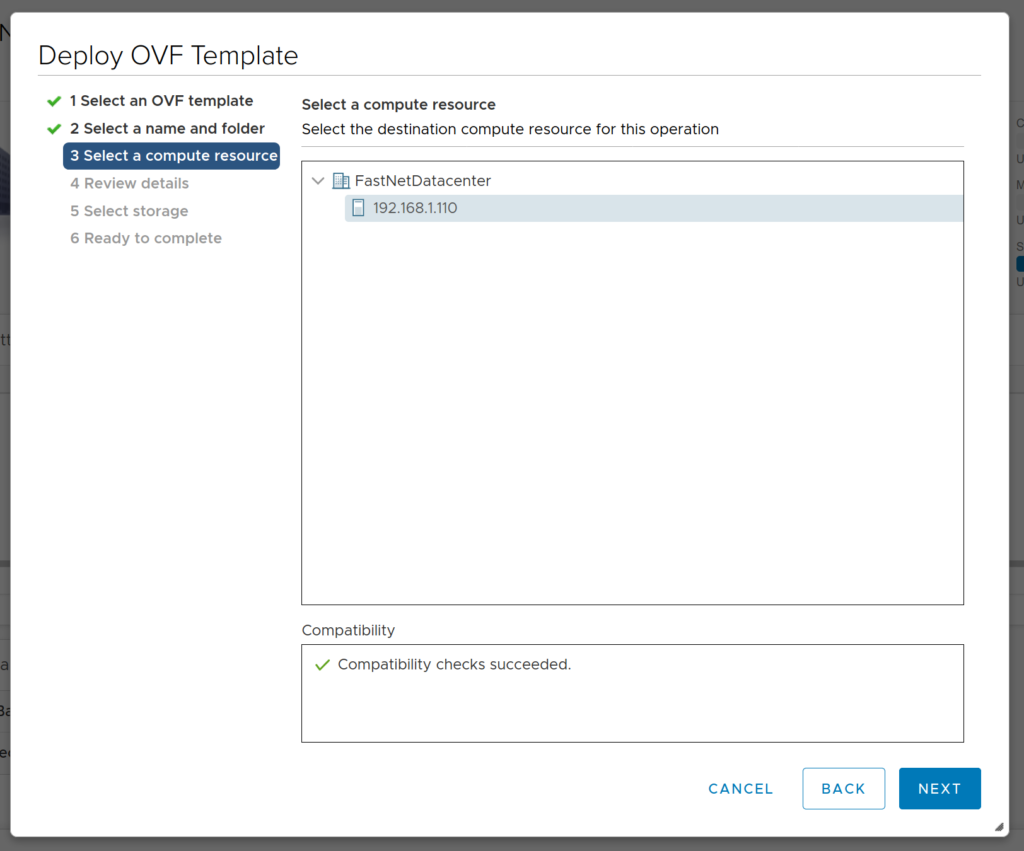
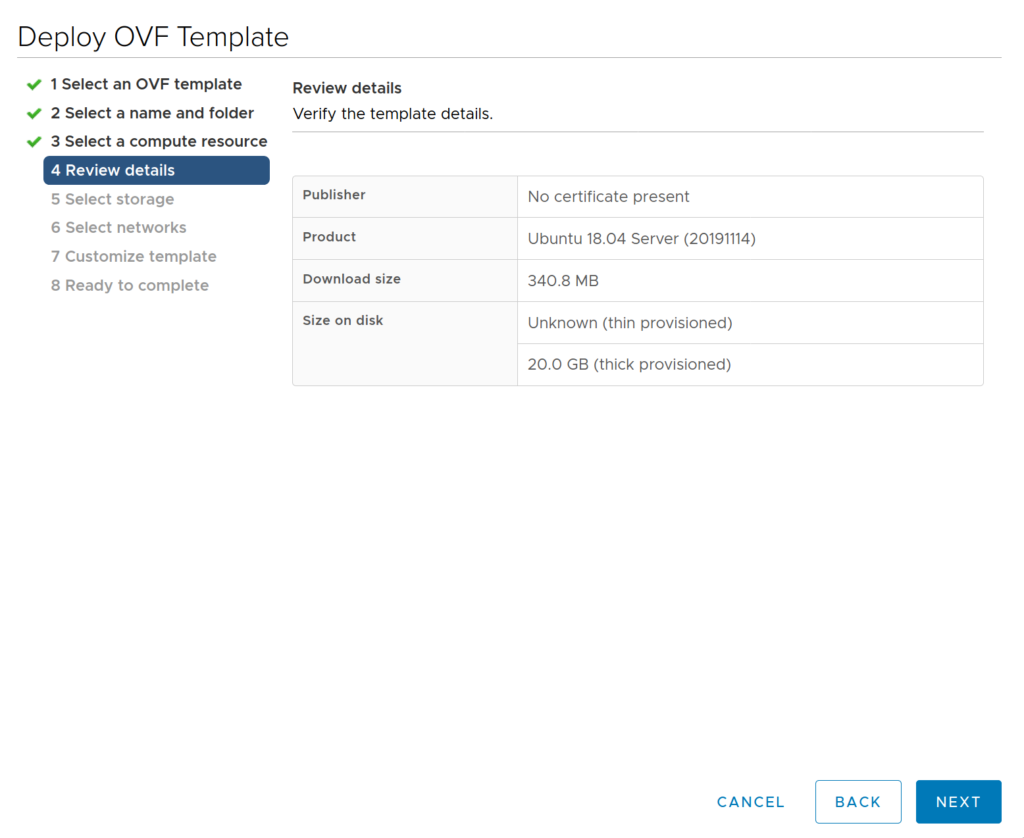
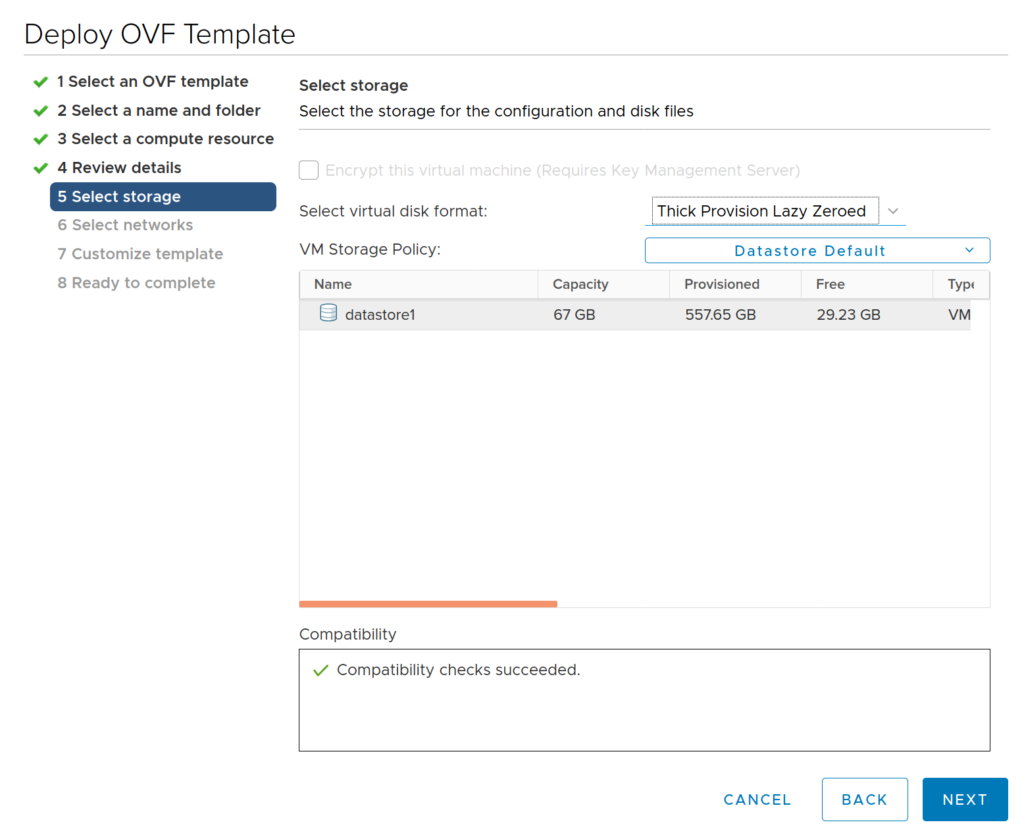
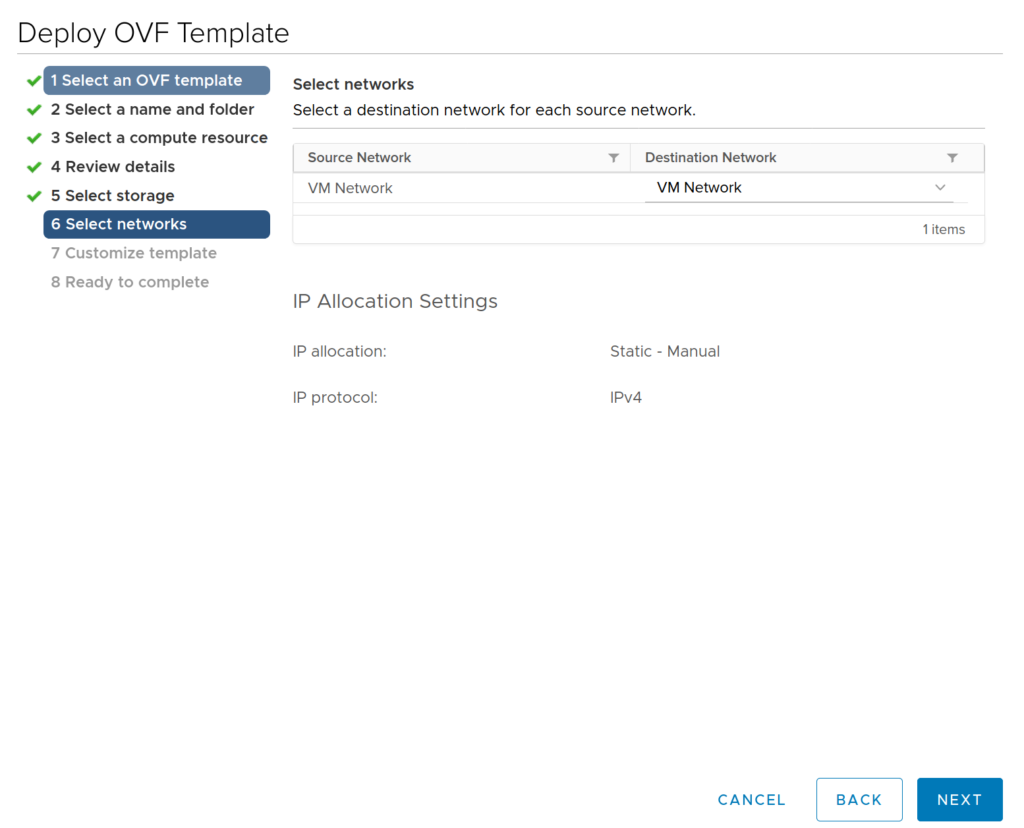
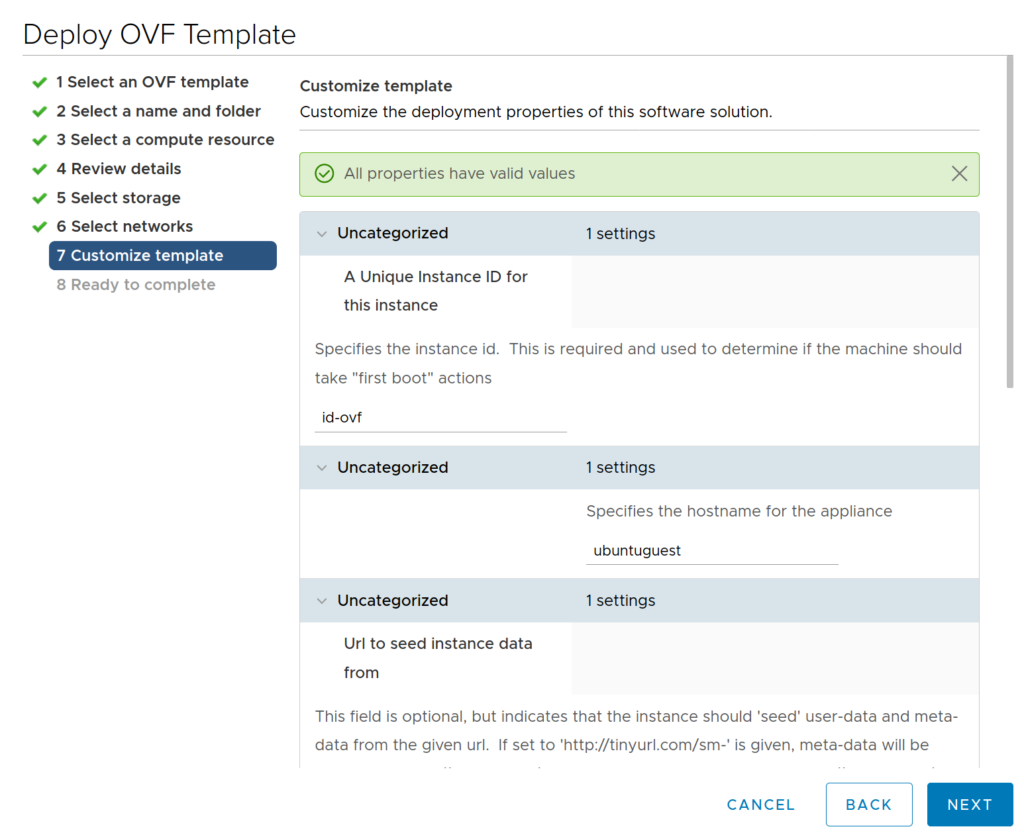
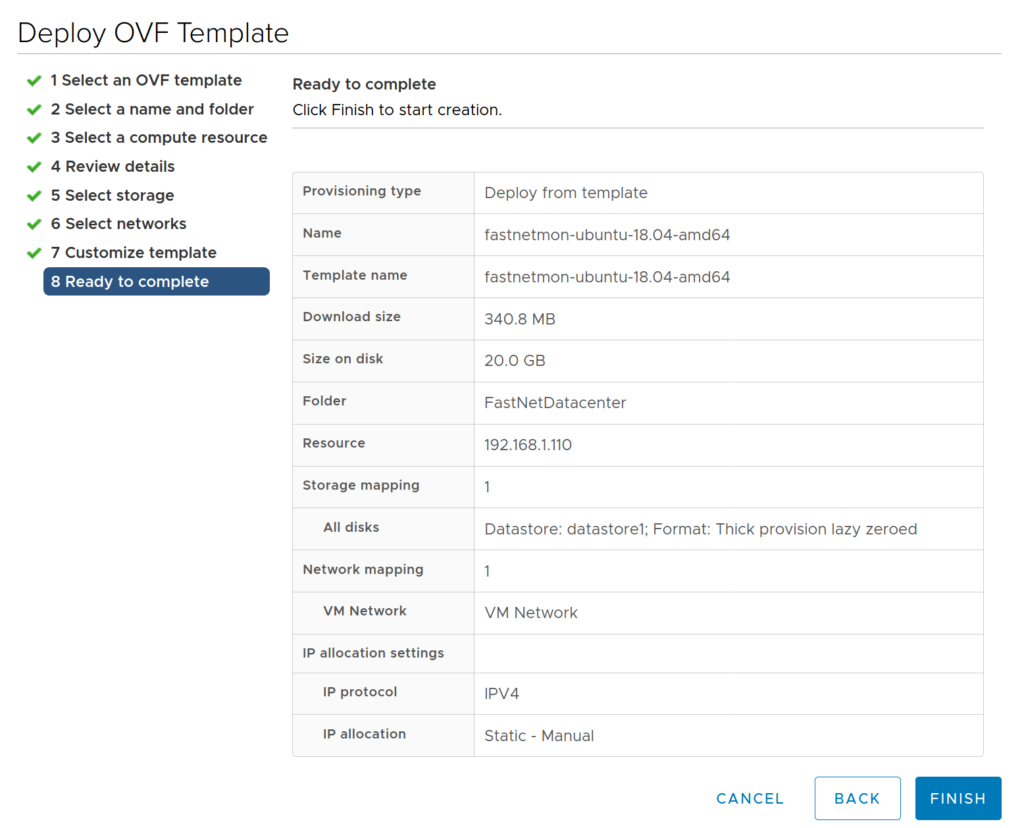
After starting the import process, please prepare to wait up to 20 minutes. Default login and password for VM are: fastnetmon/fastnetmon. We have enabled SSH by default. Be very careful and change default passwords right after logging in.
After finishing installation, please request a trial license using this form. When you receive an activation coupon, please activate it this way:
sudo ./installer -activate_coupon -activation_coupon [coupon_code]
To confirm successful activation, please restart FastNetMon and check the license status:
sudo fcli commit
sudo fcli show license
As a first step, reset the password for metrics access:
sudo ./installer -reset_clickhouse_password
To enable Grafana Web UI for metrics, you have to generate passwords for it:
sudo ./installer -reset_visual_passwords
It will print the login and password required for Grafana to access the metrics and traffic persistency database
Log in to FastNetMon's UI: https://you.ip.address:81 using passwords from the previous step
To extend disk space, please use this guide.
Finally, you can start the initial configuration of FastNetMon using the standard guide.